If you need to email a PDF from a Mac, Preview offers a built-in way to make it smaller: File > Export > Quartz Filter > Reduce File Size. Apple also warns that compression can lower quality, but that warning leaves an important practical question: does a smaller PDF still keep the information you need to read?
The test used a small synthetic document. It is not a customer file, a scanned record, or an upload. The two-page PDF contains the same sheet twice:
That distinction matters. A PDF can look like a document while its page is really an image.
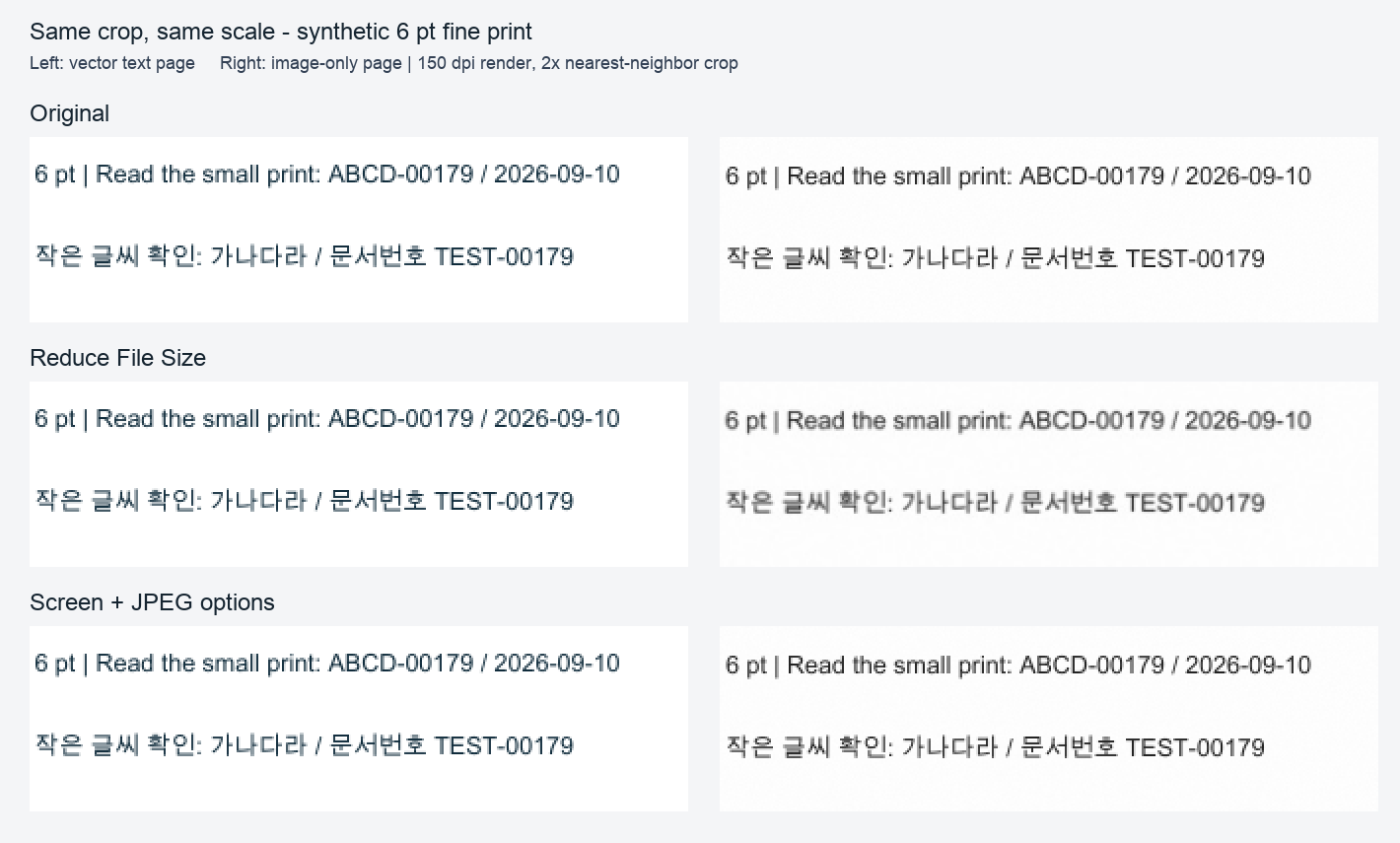
Open the full comparison image. You can also inspect the sample PDF, the reduced PDF, and the measurement record.
Before choosing a compressed copy, make a new file and inspect it:
The English menu words are Apple’s documentation wording. This test does not claim that an English-language Preview interface was run.
The controlled exports were run in macOS 26.6.2 with Preview 11.0; the source file stayed unchanged. The test compared three exports of the same two-page source:
Reduce File Size as the Quartz filter, with the other options off.| Output | Bytes | What the measurement checked |
|---|---|---|
| Original | 3,328,510 | Two pages; page 1 extractable text; page 2 image-only at 2550 × 3300 pixels |
| Control, no filter | 3,329,765 | Same page count, text check, and image dimensions as the source |
| Reduce File Size | 267,157 | Two pages; page 1 text matched after whitespace normalization; page 2 image was 1224 × 1584 pixels |
| Screen + JPEG options | 3,329,765 | Same page count, text check, and image dimensions as the source in this fixture |
Source: local measurement record, 2026-09-10. The text extraction used no OCR. A whitespace-normalized text match is not a visual-quality score.
The Reduce File Size export made this particular file much smaller. It also reduced the image-only page from 2550 × 3300 to 1224 × 1584 pixels.
In the comparison crop, the page with vector text kept its fine strokes. On the image-only page, the 6 pt Korean line looks softer after reduction, but it is not accurate to say that all text became unreadable. That is why a byte count alone is a poor decision rule.
The other two checked export options did not make this fixture smaller. That does not mean those options never help other PDFs. It only records their result for this source, these settings, and this Preview version.
In this run, Preview’s accessibility output recognized some words on the image-only page even though the PDF had no embedded text there. That observation does not establish vector text or stored OCR. Manual clipboard copying was not tested; the measurements and the small-print view are separate checks.
Look at small print, IDs, totals, dates, tables, and any image-only scan page. Select or copy text only as an additional check. If a reader needs every small character, keep the original or choose the version that meets that reading requirement. Do not expect repeated compression of a blurry result to restore detail.
The built-in command is useful because it is already on a Mac. It is not a promise that every PDF will shrink, stay equally sharp, or preserve every workflow requirement.
This was one synthetic two-page document. It does not cover passwords, forms, signatures, hyperlinks, color scans, OCR, complex fonts, or a real person’s paperwork. It does not measure upload acceptance, legal validity, or accessibility. Apple’s own Preview guide says compressed output may be lower quality and that file size and image quality can vary with the options you choose.
Use the test as a way to decide what to inspect, not as a universal compression recommendation. If the page contains a number or sentence that must be read correctly, verify it in the exported copy before sending it.
Disclosure: AI generated the synthetic document, ran local structural measurements, operated the Preview UI export, and reviewed the result. No additional PDF-compressor was purchased; files stayed on this Mac. No customer document was used or uploaded.
Further reading: Apple’s Preview PDF size guide and Apple’s guide to selecting PDF text.
No. Apple says compressed output can be lower quality. This test found softer small text on its image-only page, so check your own important pages before sending.
No. Text selection is only an additional check. This experiment used an image-only page with no embedded OCR text and keeps page structure separate from selection behavior.
Do not rely on that. Keep the original and choose the copy that meets the reading requirement after comparing the same page at the same zoom.